Quick Answer
When an automation runs at the wrong local hour, check which time zone controls the trigger, how the timestamp is interpreted and what the receiving app displays. Write the intended business rule in plain English before changing settings. A fixed UTC offset and a named local time zone can behave differently across clock changes.
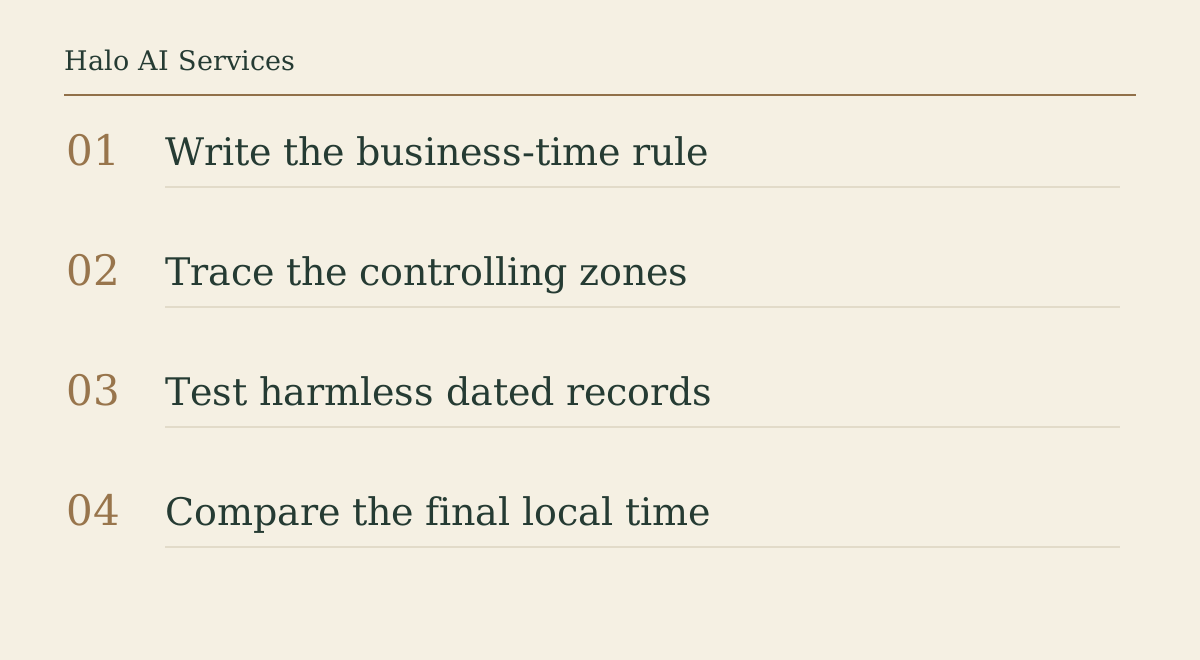
Start with the rule the business needs
“Create the morning task at nine” is incomplete. Write who expects it, on which days and in which local time zone. For an Isle of Man team, that may mean nine in the team’s local time throughout the year. A supplier elsewhere may expect a different local hour.
Also state whether the rule follows a local clock or an elapsed interval. “Every day at 09:00 local time” and “every 24 hours after this event” are different requirements. Neither is inherently wrong; the mistake is implementing one while promising the other.
Find the setting that actually controls the trigger
Do not assume the setting nearest the workflow title controls everything. Zapier’s current Schedule guidance says scheduled triggers use the account time zone rather than the Zap time zone. Read the documentation for the exact trigger and inspect the current configuration before changing a shared account.
Other steps and connected apps may interpret or display dates differently. Make a short inventory: trigger, account, conversion step and receiving app. Record the zone each uses and which one is authoritative for the business rule. Mark unknowns explicitly instead of silently treating them as UTC.
Preserve what the original timestamp means
Keep the original event time with its offset or named-zone context when available. A timestamp without that information may be ambiguous. A date-only field is a different kind of information from an appointment instant; do not add a guessed midnight conversion just to make the field fit.
Zapier’s date troubleshooting guidance recommends checking settings in the connected apps as well as Zapier. Its formatting tool can explicitly interpret input and output time zones. A conversion should clarify meaning, not apply a second correction to a value that was already correct.
Design a harmless test record
Use a test destination controlled by the business and fictional content with a unique reference, such as CLOCK-CHECK-A. Record the input exactly, the expected output and the final displayed local time. Avoid customer messages, booking changes, payment actions and other consequences while diagnosing the clock.
Choose sample dates on both sides of the relevant clock change, plus an ordinary date. If a local time repeats or does not exist during a transition, ask how the specific platform handles it. Do not infer that behaviour from a test on an ordinary afternoon.
Distinguish conversion errors from execution delays
If the scheduled time and displayed time disagree by a consistent offset, time-zone interpretation is one useful lead. If the timestamp is correct but delivery occurs later, examine the run history and queue or trigger behaviour. These are observations, not diagnoses on their own.
Keep three fields separate: intended time, actual trigger time and destination display time. That small record prevents a team from “fixing” a delayed notification by moving the business schedule an hour earlier. It also gives a support request something concrete to investigate.
Check business-hour filters separately
A workflow may start correctly and still take the wrong branch because a business-hour filter reads another zone. Trace the timestamp used by the filter and test the boundary just before and after opening or closing. Include the date and weekday rule, not only the hour.
For teams working across the Island and elsewhere, decide whose business hours apply to each action. The customer’s local time, the service team’s local time and a central reporting day may all be legitimate, but they should not be interchangeable defaults.
Agree a change and a rollback record
Before changing a shared zone, list the other schedules that depend on it. Save the existing configuration in the normal operational record, state the intended change and define the observable result that will count as success. Make one bounded change at a time.
After the test, confirm a normal scheduled run in the receiving app. A green configuration screen is not evidence that the team received the right task at the right local hour. Keep the owner and cover role with the record so the next clock-change review does not depend on one person’s memory.
Scope the audit around one route
A useful Halo audit can begin with one schedule, a redacted run-history example and a sentence describing the expected local-time result. That is enough to distinguish configuration discovery from a wider rebuild. It does not require exporting an entire customer database.
This checklist is an editorial diagnostic method, not a claim that your system has a specific fault or that every platform handles clock transitions identically. The provider documentation and observed result for your exact route decide the next action.
FAQ
Should I use UTC for every automation?
Not automatically. UTC can represent instants clearly, but a local business-hour rule still needs an explicit local-zone interpretation.
Which time zone does Schedule by Zapier use?
The current Zapier Schedule documentation says the account time zone controls scheduled triggers, rather than the Zap time zone. Verify the current trigger and settings before changing them.
Does a one-hour difference prove a daylight-saving bug?
No. It is a clue. Compare the original timestamp, controlling settings, run history and destination display before deciding the cause.
How do I test without messaging customers?
Use fictional records and a controlled test destination with external actions disabled or excluded. Verify the expected output before returning the route to normal operation.
Next step
Bring Halo one scheduled route, the intended local-time rule and a redacted example of the wrong result. Request a bounded automation audit before changing account-wide settings.
Sources
- Zapier Schedule documentation: Current trigger-specific account-time-zone rule.
- Zapier date and time troubleshooting: Check connected-app and workflow settings.
- Zapier date formatting: Explicit interpretation and conversion of date-time input.